Ticket Workflows
Before we get into the details of ticket notes, here are some best practices for updating tickets.
1. If you are updating a ticket, if it will make the ticket clearer, please add a note explaining the update. Try not to edit the description of the ticket unless the nature of the ticket has truly changed. (Sometimes it's appropriate to append new info to the ticket description. This is preferable to replacing the existing description.)
2. If you are a technician taking over a ticket, please make sure to read all the ticket notes and time entries before getting started, whether you are asked to or not. You can uncheck the box for “Show System Notes” to make it easier to see the notes that are technically relevant. Please don’t assume that all the info you need about the ticket is in the description.
Note Types
Note types are categories applied to notes. They don't do much, but they are useful in the following scenarios:
- Creating workflow rule conditions
- Global Notes Search can be filtered by the Note Type field.
The Publish type determines who can view notes or open attachments created by a resource (system notes visibility is determined by the viewer's security level). It is inherited from the note type. There is supposed to be a way to select it from a dropdown box, but the way our system is set up, this is not the case.
Below are some of the default note types we use most often.
(Technical note: Since some workflow rules filter on note types, these note types should not be changed unless careful consideration is given to how that may effect WF rule behavior)
Note source | Default Note Type | Publish Type |
| External note template | Ext note added by a Resource | All Autotask Users |
Internal note template | Int note added by a Resource | Internal Only |
Emailed in from client | Note Emailed In | All Autotask Users |
Emailed in from resource | Note Emailed In | All Autotask Users |
Submitted via client portal (regular note) | Client Portal Note | All Autotask Users |
Submitted via client portal (Quick note) | Client Portal Note | All Autotask Users |
Notes Created By the Ticket Interface
First, click the note icon to create a new ticket note.
Always use a note template when creating a ticket note. The “Internal” and External” ticket note templates are set up so that the appropriate recipients are pre-checked and the ticket will come from the correct source. For general internal and external notes, always use these templates:
Internal notes
By default, internal notes only go to internal (GGIT) resources on the ticket. Choose the note template from the dropdown box on the right. For internal notes, choose the template called "Internal Note."
By default only the primary resource will receive the note. You can select the ticket's secondary resources or even select other (non-ticket) resources if you wish. (Click Load to see other contacts)
You can also edit the recipients from the notification tab at the bottom of the note.
If you want to add a note to the ticket but you do not need to email your note to anyone, then remove all the recipients.
You can view and edit recipient info as needed on a per-note basis, but don't add external contacts to an internal note. Instead, use the External note template. (If cureious, see the blue info box below to understand why.)
External Notes
External notes are automatically emailed to customer contacts that are attached to the ticket at the time the note is saved. Choose the note template from the dropdown box on the right. For external notes, choose the template called "External Note."
As you can see above, by default, only the primary ticket resource and primary ticket contact will receive the external note. As with internal notes, you can select the ticket's secondary resources, or even select other (non-ticket) resources if you wish. You can also add additional customer contacts to an external note:
You can also edit the recipients from the notification tab at the bottom of the note.
Notes Created Via Email
If anyone sends an email replying to the support email address, assuming the ticket number is in the subject line of the email, all of that ticket's contacts and ticket resources will receive the email. Any email sent to the support address will become a ticket note attached to the ticket referenced in the subject line.
(If there is no ticket number in the subject line, then a new ticket will get created. Sometimes customers make this mistake when following up on a ticket and we need to merge the newly created ticket with the original. )
There is no need to cc any ticket contacts when sending an email to the support address. This will only result in that ticket contact receiving a duplicate email - one from the ticket system and one from you directly. All ticket contacts and ticket resources will automatically receive any ticket notes that are emailed in.
What Address Do Ticket Emails Come From?
External note emails are configured to always come from the support@ email address. This ensures that when a customer replies, the customer's message will go to the support address.
By contrast, Internal note emails are configured to always come from the address of the resource creating the note. This ensures that if another internal resource replies, the message will go to the resource that created the note, rather than going to the support@ address (which would create an external note that might unintentionally be visible to the customer.)
If you send in a note via email and receive a message back with subject
Your Email Could Not Be Processed,
see this article.
Autotask Behavior When Customers send in Ticket Notes on Existing Tickets
The information in this section is a bit esoteric and is not critical for everyday use of the system.
If the subject line contains the ticket number, the note will be applied to the applicable ticket.
If the email address from which the ticket note comes is not already attached to the ticket, the note will be added to the ticket, but the sending user will not be attached to the ticket as a contact. This is the case whether or not the sending email address is associated with the customer account (i.e., is an "account contact") in the ticketing system.
If an account contact is CC-ed on the email , the CC-ed contact will be attached to the ticket as an additional contact. This is the case whether the sending email address is an account contact or not.
Bottom line: Any account contact who is CC-ed on a ticket note will be added to the ticket, but the original sender will not be. If the original sender would like to be added to the ticket, they can CC themselves when sending the ticket note. As long as the email address they are CC-ing is an account contact email address, this will add them as an additional ticket contact.
TIP: It’s not necessary to CC users who are already ticket contacts. The ticketing system emails a copy of the ticket note to all ticket contacts (and only to ticket contacts).
Company domains
- If a user has an email address that is not on the company’s domain, the user will be still added to the ticket according to the rules above as long as the email address is already associated with the account.
- If a user has an email address that is on the company’s domain but the user is not a contact in our system, the user will be still added to the ticket and a contact will automatically be created in AT. This is not always desirable behavior so it's important to be aware of it, as it may be necessary to edit or delete the auto-created contact in certain situations.
Quick Notes
Quick Notes are created by typing into the box under the ticket's Activity tab.
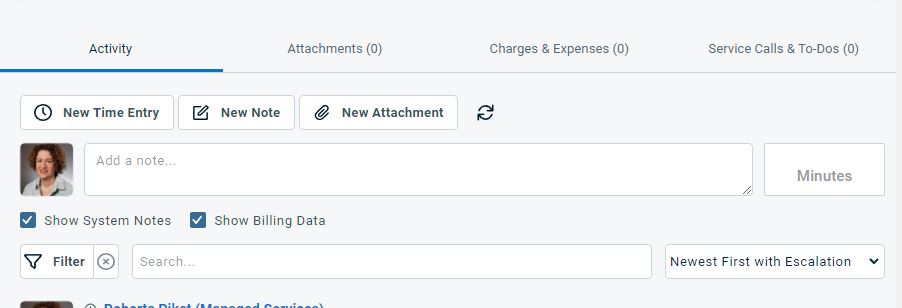
It's important to remember that Quick Notes are not emailed out. However, they may still be visible to the client via the client portal.
(There are several options in the note type dropdown box. Some of them are
system types, so we cannot disable them)
Who Will See My Quick Note?
An
easy way to know if your note will be visible to the client is to look at the
checkbox marked “internal” (visible below the
text field after you click into the text field). If this box is not checked, your note will be visible to client
portal users:
Quick Notes are never emailed out. Whether they are visible to the client in the client portal depends on whether “internal” is checked off
Here's are the note types that Quick Notes makes available. (You may notice some of them overlap with the table of commonly used note types above.) The ones listed as “internal only” under the Publish To column have the “internal” check box ticked by default.
HOWEVER, if you untick this box, the note will be visible to the client in the
portal.
| Note Type | Publish To |
Task Summary: (default) | Internal only |
Task Notes | Internal only |
Task Details | Internal only |
MC Email Notes | This is only for Mission Control. Please don’t use it. |
| This is intended for notes that come in via email. Please don’t use it. |
External Note added by a resource | A client portal user with access to this ticket will see this note. |
Internal Note added by a resource | The note will be visible to internal (GGIT) resources when they view the ticket. It will not be visible via the client portal. |
Best practices recommendation is
If you’re creating a note that needs to be emailed, you are better
off using the regular (not “Quick”) note with either the “[INTERNAL] Internal
Note” or “[EXTERNAL] External Note”
templates.
If
you want to jot something down that no one needs to be notified about, it may
be a little faster to use Quick Notes, as long as you make sure the “internal”
check box is ticked.
If you want to notate something that company contacts should see when viewing the ticket history in the client portal, but it's not significant or timely enough to email them about, you can send a Quick Note of type "External Note added by a resource."
Using Quick Notes for Quick Time Entries (for Technicians)
By adding minutes in the box to the right of the text field, you can turn your quick note into a time entry.
In order for the time entry text to be properly visible for approval and posting purposes, you should use an external note type.
Please note that the client portal user will see this time entry in real time. Therefore, only use Quick Notes to enter a time entry when you're confident that your entry is completely innocuous and will not need editing or toning down during the post/approval. If you're not sure, please use the regular time entry option.
The client portal user will see the start time of the time entry, but not the end time nor the total duration of the time entry.
Further Ticket Note Templates
These are the two most common ticket note templates you will use. There are
several others you should become familiar with.
Sending an Attachment with a Ticket Note
You can attach a file to a ticket note, but it's a little tricky. Follow the instructions in
Attachments in AutoTask.
The simpler way to send an attachment in a note is to send it via email, assuming the note is meant to be external.


